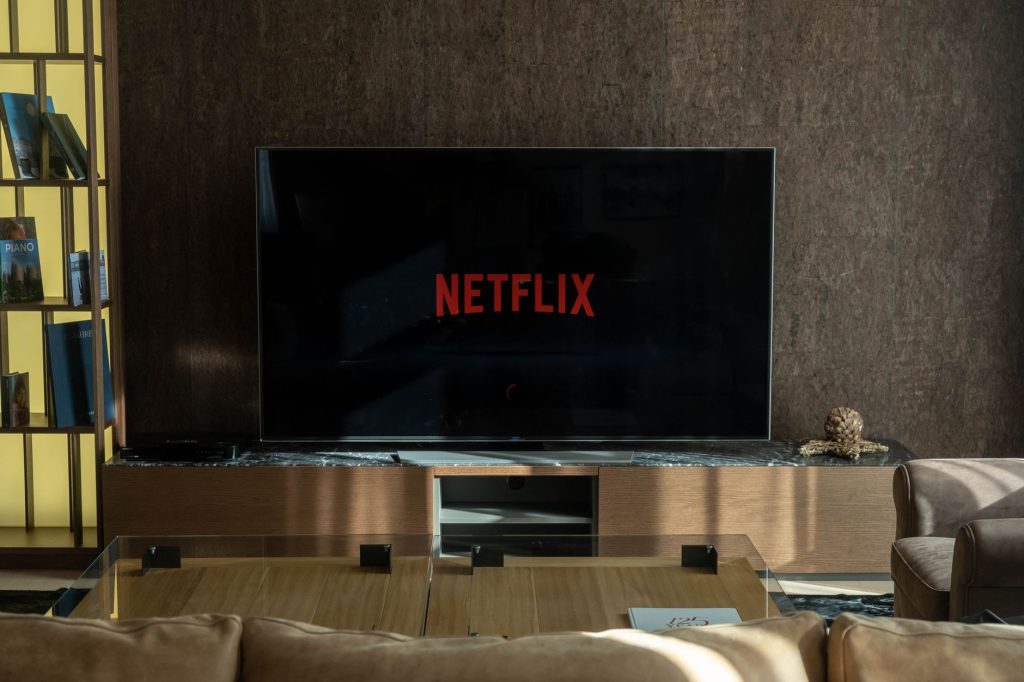
How to Connect Your Fire Stick to an Aurus 32-Inch TV
Introduction: Connecting Your Fire Stick to the Aurus 32-Inch TV
If you’re having trouble connecting your Fire Stick to your Aurus 32-inch TV model 3210 LED NTKH, you’re not alone. This smart LED TV is a great choice for streaming, but sometimes the setup process can be tricky. In this guide, we’ll walk you through the steps to successfully link your Fire Stick, ensuring a smooth streaming experience.
Understanding Your Fire Stick and Aurus TV
Features of the Fire Stick
The Fire Stick is a powerful streaming device that transforms your regular TV into a smart TV. It offers access to a wide range of apps and streaming services, making it a popular choice for cord-cutters. According to Digital Trends, the Fire Stick provides a user-friendly interface and robust performance.
Features of the Aurus 32-Inch TV
The Aurus 32-inch LED TV is designed to deliver quality visuals and smart capabilities. This model supports various inputs, making it compatible with external devices like the Fire Stick. Understanding your TV’s ports and settings is essential for a successful connection.
Step-by-Step Guide to Connect Your Fire Stick
Step 1: Check Your Connections
Ensure your TV is turned on and set to the correct HDMI input. Plug the Fire Stick into an available HDMI port. Use the provided USB cable to connect the Fire Stick to a power source.
Step 2: Set Up Your Fire Stick
Once connected, the Fire Stick will prompt you to complete the setup process. Follow the on-screen instructions to connect to your WiFi and sign in to your Amazon account. For tips on resolving WiFi issues, check out Fixing Fire Stick WiFi Disconnects: Simple Solutions.
Step 3: Optimize Your Streaming Settings
To enhance your streaming experience, adjust the video resolution settings on your Fire Stick. For more details on optimizing performance, visit Fire Stick TV 4K vs. Antutu v11 Scores: Unleash the Streaming Power.
Troubleshooting Common Issues
No Signal or Display Issues
If your TV displays a “No Signal” message, double-check your HDMI connection and ensure the TV is set to the correct input. For solutions to display problems, refer to Troubleshooting Green and Multicolored Screens on Your Fire Stick.
Remote Pairing Problems
If the Fire Stick remote isn’t working, try replacing the batteries or re-pairing the remote. Make sure you’re within range of the device.
Enhancing Your Streaming Experience
Explore IPTV Options
Consider exploring legal IPTV services to expand your viewing options. Our Complete IPTV Guide 2026: Everything You Need to Know offers valuable insights into choosing the right service for your needs.
Managing Updates
Regular updates can improve Fire Stick performance. Learn how to manage updates effectively in our article How to Block Updates on Your Fire Stick 4K Max Effectively.
Frequently Asked Questions
How do I reset my Fire Stick remote? Remove the batteries, wait 30 seconds, and reinsert them. Press and hold the Home button for 10 seconds to re-pair.
Why is my Fire Stick not connecting to WiFi? Check your network settings and ensure the Fire Stick is within range of the router. Restarting your router may also help.
Can I use a universal remote with my Fire Stick? Yes, many universal remotes are compatible with the Fire Stick. Consult the remote’s manual for pairing instructions.
How do I update my Fire Stick? Go to Settings > My Fire TV > About > Check for Updates to ensure your device has the latest software.
What if my Fire Stick is stuck on the loading screen? Unplug the Fire Stick, wait a few minutes, then plug it back in to perform a soft reset.
Conclusion: Enjoy Seamless Streaming with Fire Stick
By following these steps, you should be able to connect your Fire Stick to your Aurus 32-inch TV and enjoy a wide array of streaming options. If issues persist, consider reaching out to customer support for further assistance. Ready to enhance your streaming experience? Dive into our articles for more tips and tricks today!
Frequently Asked Questions
How do I reset my Fire Stick remote?
Remove the batteries, wait 30 seconds, and reinsert them. Press and hold the Home button for 10 seconds to re-pair.
Why is my Fire Stick not connecting to WiFi?
Check your network settings and ensure the Fire Stick is within range of the router. Restarting your router may also help.
Can I use a universal remote with my Fire Stick?
Yes, many universal remotes are compatible with the Fire Stick. Consult the remote’s manual for pairing instructions.
How do I update my Fire Stick?
Go to Settings > My Fire TV > About > Check for Updates to ensure your device has the latest software.
What if my Fire Stick is stuck on the loading screen?
Unplug the Fire Stick, wait a few minutes, then plug it back in to perform a soft reset.