How’s Your Firestick Performing? Tips and Troubleshooting
Understanding Your Firestick’s Performance
The Amazon Firestick has become a staple in many households, providing an easy way to stream content directly to your TV. However, like any device, its performance can sometimes falter. Whether you’re experiencing buffering issues or connectivity problems, understanding how your Firestick works is crucial to maintaining optimal performance. In this guide, we’ll explore practical tips and troubleshooting advice to keep your Firestick running smoothly.
Common Firestick Issues and How to Solve Them
Buffering Problems
Buffering is a common issue for many Firestick users. It can be caused by a slow internet connection or an overloaded device. To resolve this, ensure your internet speed is adequate for streaming. According to PCMag, a minimum speed of 5 Mbps is recommended for standard streaming.
Connectivity Issues
If your Firestick won’t connect to Wi-Fi, it might be due to network issues or settings. Ensure your router is working correctly and that the Firestick is within range. For a detailed troubleshooting guide, check out our article on Why Your Firestick Won’t Start and How to Fix It.
Optimizing Firestick Performance
Clear Cache and Data
Over time, your Firestick may accumulate unnecessary data, slowing it down. Regularly clearing the cache and data can help improve performance. Navigate to ‘Settings’ > ‘Applications’ > ‘Manage Installed Applications’ and select ‘Clear Cache’ for each app.
Update Your Device
Keeping your Firestick updated is essential for optimal performance. Updates often include bug fixes and new features. To update, go to ‘Settings’ > ‘My Fire TV’ > ‘About’ > ‘Check for Updates’.
Enhancing Your Streaming Experience
Using a VPN
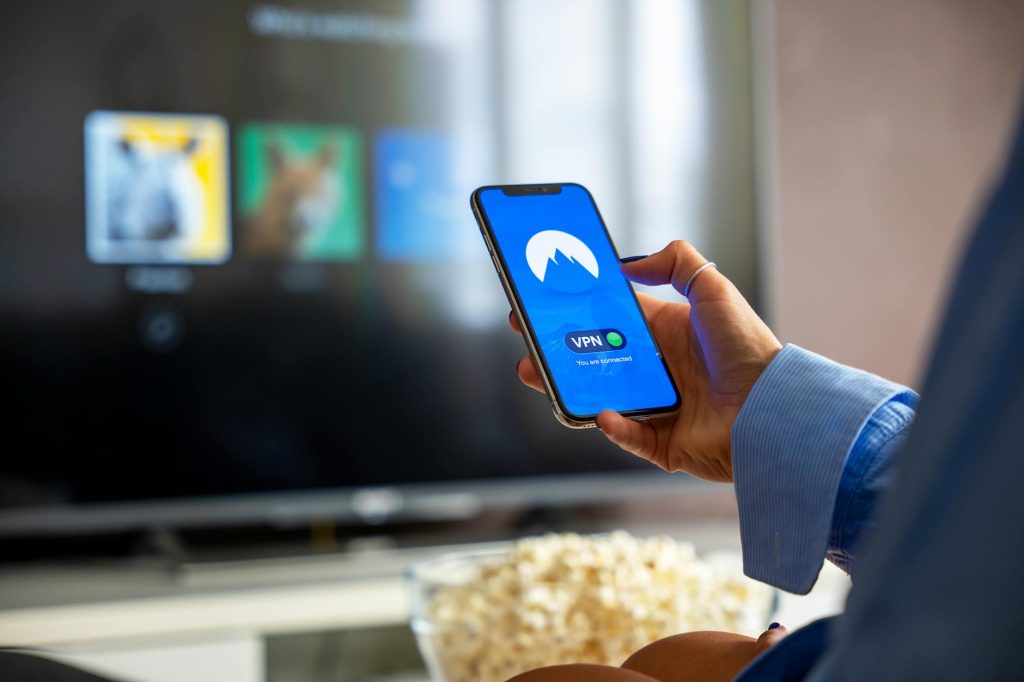
For privacy and to bypass geographical restrictions, consider using a VPN with your Firestick. This can enhance your streaming experience by providing access to a wider range of content.
Explore New Content
Discovering new content is part of the fun of using a Firestick. Check out our Complete IPTV Guide 2026 for more ways to expand your viewing options legally and ethically.
Firestick for Sports Enthusiasts
Streaming Sports Events
Sports fans can enjoy live events using their Firestick. To stream TNA Pay-Per-View events legally, follow our guide on How to Stream TNA Pay-Per-View on Firestick Legally.
Frequently Asked Questions
Here are some common questions about using a Firestick:
- How do I reset my Firestick? Go to ‘Settings’ > ‘My Fire TV’ > ‘Reset to Factory Defaults’.
- Why is my Firestick remote not working? Check the batteries and ensure there are no obstructions between the remote and the Firestick.
- Can I use my Firestick with a VPN? Yes, using a VPN can help protect your privacy and access geo-restricted content.
- What apps should I install on my Firestick? Popular apps include Netflix, Hulu, and Disney+. For more options, read our How to Watch TNA Pay-Per-View on Firestick: Your Ultimate Guide.
- How can I improve streaming quality on my Firestick? Ensure you have a strong internet connection and clear the cache regularly.
Conclusion
Your Firestick is a powerful tool for streaming all your favorite content. By following these tips and troubleshooting advice, you can ensure it operates at its best. Don’t let minor issues disrupt your viewing experience. For more guidance, explore our comprehensive resources and enhance your streaming setup today!
Frequently Asked Questions
How do I reset my Firestick?
To reset your Firestick, navigate to ‘Settings’ > ‘My Fire TV’ > ‘Reset to Factory Defaults’ and follow the prompts.
Why is my Firestick remote not working?
Check the batteries and ensure there are no obstructions between the remote and the Firestick. If issues persist, consider pairing the remote again.
Can I use my Firestick with a VPN?
Yes, using a VPN with your Firestick can help protect your privacy and allow access to geo-restricted content.
What apps should I install on my Firestick?
Consider installing popular streaming apps like Netflix, Hulu, and Amazon Prime Video. Look for new apps that suit your interests.
How can I improve streaming quality on my Firestick?
Ensure a strong internet connection and regularly clear your app cache to maintain optimal streaming quality.