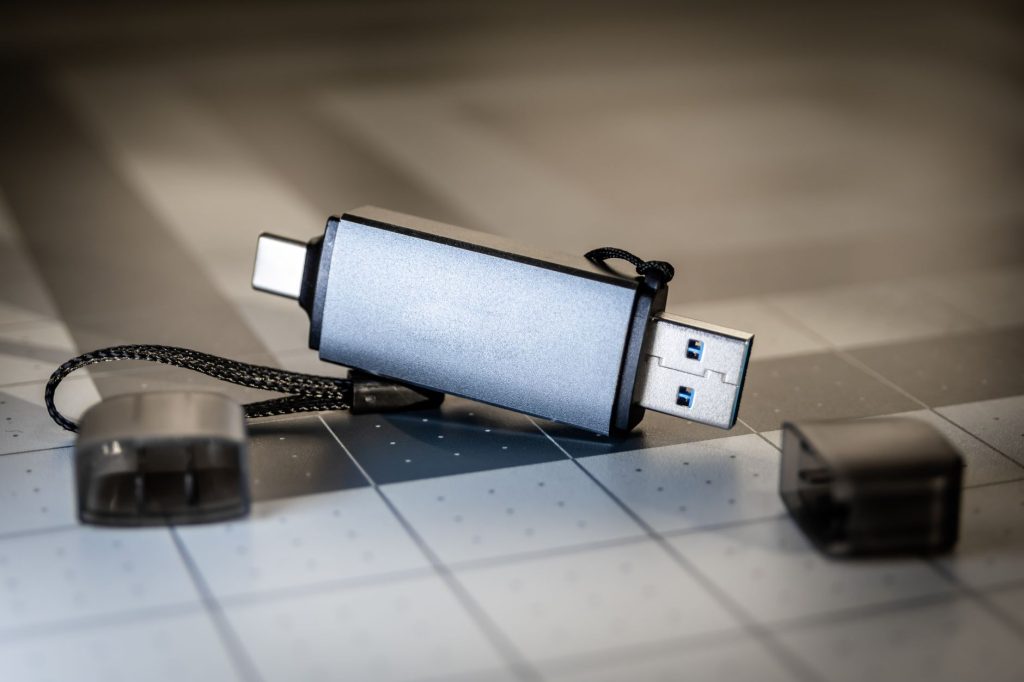
Fire TV Stick 4K: Solutions for USB Formatting Issues
The Fire TV Stick 4K is a powerhouse streaming device, offering an array of features that enhance your viewing experience. However, users often encounter issues when trying to format a USB as internal storage. This guide will explore why this happens and how you can solve it.
Understanding Fire TV Stick 4K and USB Storage
Before diving into solutions, it’s crucial to understand how the Fire TV Stick 4K handles USB storage. The device supports external storage for apps and games, but formatting it as internal storage can sometimes be problematic.
Fire TV’s Storage Limitations
The Fire TV Stick 4K has limited internal storage, usually around 8GB. This is why many opt to use USB storage to expand capacity. However, Amazon’s device restricts certain functionalities, causing formatting issues.
Common USB Compatibility Issues
Not all USB drives are compatible with the Fire TV Stick 4K. Ensure your USB is formatted to FAT32 or exFAT, as these are the supported formats. According to Android Authority, using the wrong format can lead to recognition problems.
Why Fire TV Stick 4K Won’t Format USB as Internal Storage
There are several reasons why your Fire TV Stick 4K might refuse to format a USB drive as internal storage. Understanding these can help you troubleshoot effectively.
Insufficient Power Supply
The Fire TV Stick 4K requires a stable power supply. If your USB drive demands more power than the device can provide, it may not function correctly. This can prevent successful formatting.
Device Software Limitations
Software updates sometimes introduce bugs or change functionalities. If your Fire TV Stick 4K recently updated, it might have new restrictions on USB formatting. Stay informed about updates, such as the Amazon Fire TV Update.
Steps to Fix USB Formatting Issues on Fire TV Stick 4K
Follow these steps to troubleshoot and potentially resolve USB formatting issues on your Fire TV Stick 4K.
Check USB Compatibility
- Ensure your USB is formatted in FAT32 or exFAT.
- Try a different USB drive, as some may not be compatible.
Update Fire TV Software
Make sure your device is running the latest software version. Fire TV updates can fix bugs that cause storage issues. Learn more in our Complete IPTV Guide.
Use a Powered USB Hub
If you’re using a power-hungry USB drive, consider connecting it through a powered USB hub to ensure it receives adequate power.
Alternative Solutions for Expanding Fire TV Storage
If formatting the USB as internal storage continues to be problematic, consider these alternatives.
Cloud Storage
Utilize cloud storage services to keep your data accessible without relying on local device storage. This can be especially useful for large media files.
External Streaming Devices
Consider using devices like the Fire TV Stick for downloading applications that don’t require internal storage space.
Frequently Asked Questions
- Why won’t my Fire TV Stick 4K recognize my USB drive?
Ensure your USB drive is formatted correctly to FAT32 or exFAT and is compatible with the device. - Can I use any USB drive with my Fire TV Stick 4K?
Not all USB drives are compatible; it’s best to use those with FAT32 or exFAT formats. - Is it possible to use a USB hub with the Fire TV Stick 4K?
Yes, using a powered USB hub can help if your drive requires more power than the Fire TV Stick can provide. - How can I expand my Fire TV Stick 4K storage without USB?
Consider using cloud storage or external streaming devices as alternatives. - Will future updates resolve USB formatting issues?
It’s possible. Regularly check for updates, as they may fix existing issues.
Conclusion: Optimize Your Fire TV Experience
The Fire TV Stick 4K is an excellent device for streaming, but USB formatting issues can hinder its full potential. By understanding the limitations and following the troubleshooting steps, you can enhance your streaming experience. Stay informed on updates and explore alternatives like cloud storage for seamless media access. For more tips, visit our Fire TV Recast Guide.
Frequently Asked Questions
Why won’t my Fire TV Stick 4K recognize my USB drive?
Ensure your USB drive is formatted correctly to FAT32 or exFAT and is compatible with the device.
Can I use any USB drive with my Fire TV Stick 4K?
Not all USB drives are compatible; it’s best to use those with FAT32 or exFAT formats.
Is it possible to use a USB hub with the Fire TV Stick 4K?
Yes, using a powered USB hub can help if your drive requires more power than the Fire TV Stick can provide.
How can I expand my Fire TV Stick 4K storage without USB?
Consider using cloud storage or external streaming devices as alternatives.
Will future updates resolve USB formatting issues?
It’s possible. Regularly check for updates, as they may fix existing issues.