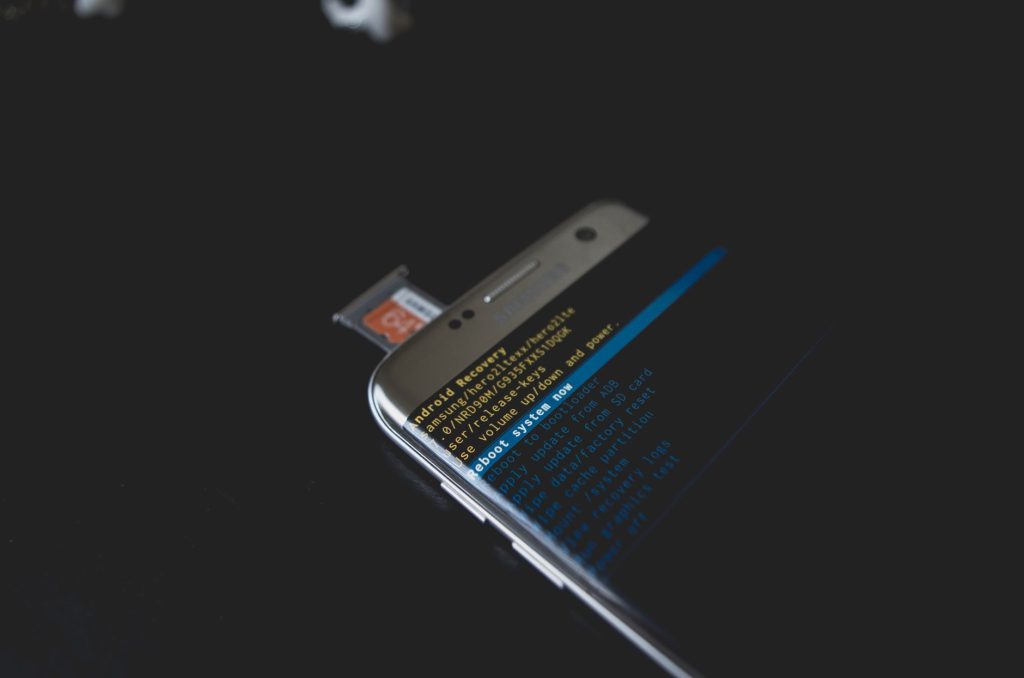
Fixing Android TV Stuck on Recovery Screen: A Complete Guide
Understanding the Android TV Recovery Screen Issue
There’s nothing more frustrating than settling in to watch your favorite show only to find your Android TV stuck on the recovery screen. This issue can be even more daunting when the physical power button doesn’t work. Don’t worry; you’re not alone, and this guide will help you navigate through the problem effectively.
Why Your Android TV Might Be Stuck in Recovery Mode
Software Glitches
One of the most common reasons for this issue is software glitches, which can occur due to recent updates or corrupted files. According to Android Authority, these glitches can often be resolved with a reboot or a factory reset.
Hardware Malfunctions
Hardware issues can also be a culprit. A malfunctioning power button or faulty internal component can trap your device in recovery mode. In such cases, professional repair might be necessary.
Steps to Fix an Android TV Stuck on Recovery Screen
Using a Remote Control
- Press and hold the Home and Back buttons simultaneously.
- Choose the Reboot option from the menu using the navigation buttons.
If this doesn’t work, consider using a USB keyboard to navigate the recovery options.
Performing a Hard Reset
If the remote control method fails, a hard reset might be your next step. Consult our Complete IPTV Guide for detailed instructions on performing a reset.
Alternative Solutions for Non-Responsive Power Buttons
Using a USB Keyboard
Connect a USB keyboard to your Android TV. Use the arrow keys to navigate and select the reboot options. This workaround is particularly useful when the physical power button is unresponsive.
Seeking Professional Help
If none of the above solutions work, it might be time to seek professional help. A technician can diagnose and fix hardware-related issues efficiently.
Preventive Measures for Android TV Recovery Screen Issues
Regular Software Updates
Keep your Android TV’s software up-to-date to prevent glitches and bugs. Regular updates often contain fixes for known issues.
Use Reliable Accessories
Using high-quality accessories like HDMI cables and power adapters can prevent hardware malfunctions. Check out our guide on Finding the Best 4K Android TV Stick or Box for Streaming.
Frequently Asked Questions
- What is the Android TV recovery screen?
The recovery screen is a built-in Android TV feature used for troubleshooting and repairing system issues.
- Can I fix a non-responsive power button myself?
While simple fixes can be attempted, complex hardware issues might require professional repair.
- Why does my Android TV keep going to recovery mode?
This could be due to software glitches, failed updates, or hardware malfunctions.
- Is factory resetting safe for my Android TV?
Factory resetting can resolve many issues, but it will erase all personal data and settings, so back up data first.
- How can I prevent recovery screen issues in the future?
Keep your device updated and use reliable accessories to minimize hardware failures.
Conclusion: Enjoy a Seamless Android TV Experience
Getting your Android TV back to normal may seem daunting, but with the right steps, you can resolve the recovery screen issue efficiently. For more tips on optimizing your streaming experience, visit our guide on Discover the Best IPTV Player for Android TV & Mobile. Don’t let technical issues keep you from enjoying your favorite shows.
Frequently Asked Questions
What is the Android TV recovery screen?
The recovery screen is a built-in Android TV feature used for troubleshooting and repairing system issues.
Can I fix a non-responsive power button myself?
While simple fixes can be attempted, complex hardware issues might require professional repair.
Why does my Android TV keep going to recovery mode?
This could be due to software glitches, failed updates, or hardware malfunctions.
Is factory resetting safe for my Android TV?
Factory resetting can resolve many issues, but it will erase all personal data and settings, so back up data first.
How can I prevent recovery screen issues in the future?
Keep your device updated and use reliable accessories to minimize hardware failures.